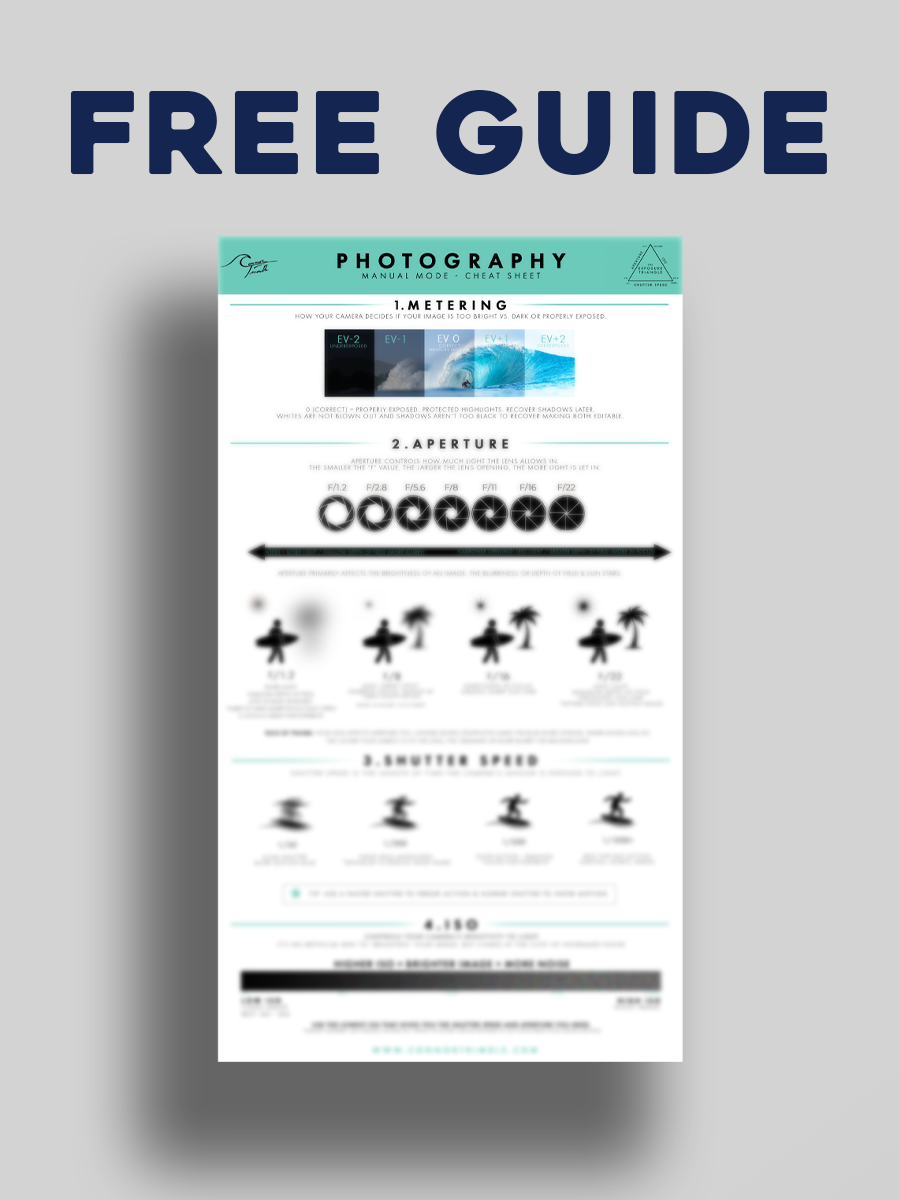
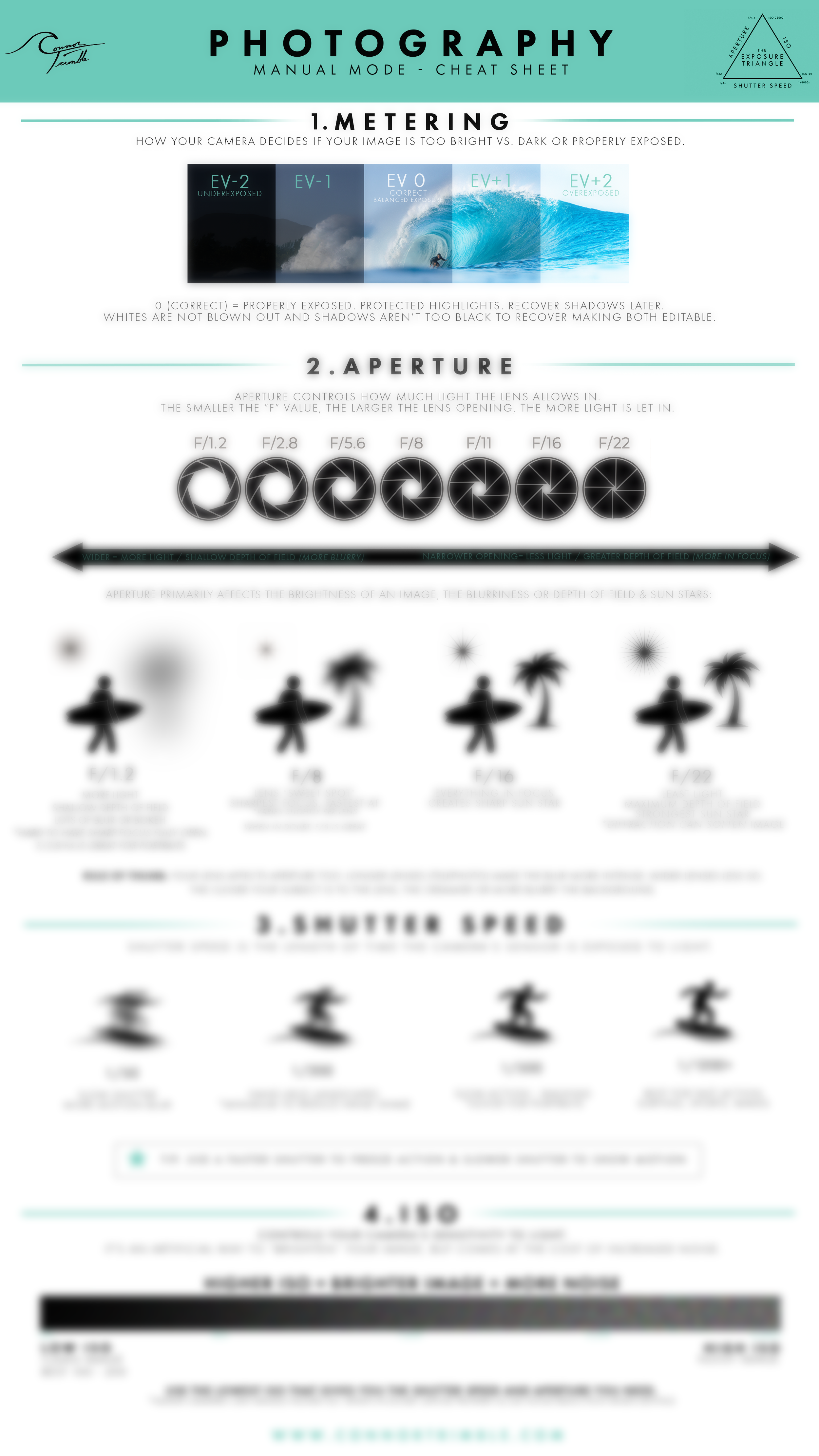
The perfect .look for Premiere Pro users to quickly make their surfing footage have a pop of blue, but not go over the top.
I needed a one click tool to speed up my work flow and love this so much that I’ve made it publicly available. Genuinely, this is my secret sauce. After making different variations, I always tend to use the same one over and over so I didn’t want to over complicate things, but just give you what I actually use all of the time to get those beautiful Pipeline Blues.
What shocked me about this .look is that it works great on drone shots, in water, from land and underwater. It slightly desaturated yellows and skin tones while making your footage really pop! If you’ve shot in and around the water a lot, you know how difficult it is to make the blues look good while retaining the skin tone and that’s really where this Pipe Blues stands out to me. I use it at sunset and on all kinds of clips in every lighting situation.
Use the intensity slider to control how much Pipe Blues you need on top of your rec.709 footage. I also suggest slightly adjusting curves once applied to take a clip that little bit further in refinement because all lighting conditions are different.
Upon purchase, you will receive an instant download of the creative .look file.
___________
How to use:
DOWNLOAD:
Download file to an easy to find folder. I suggest making a LUTs and LOOKs Folder on your desktop that’s easy to navigate to.
NORMAL COLOR:
Go to Creative tab in Lumetri Color in Premiere Pro
Click on the “Look” tab
Click Browse
Find the Pipeline Blues Connor Trimble.look file in the destination folder you put it in
Apply creative look and adjust intensity
Make adjustments to color and finess until you get your desired final grade
LOG FOOTAGE:
Apply conversion LUT to get your footage back to rec.709 (can be done with adjustment layer above clip or in ‘Basic Correction” tab)
Go to Creative tab in Lumetri Color in Premiere Pro
Click on the “Look” tab
Click Browse
Find the Pipeline Blues Connor Trimble.look file in the destination folder you put it in
Apply creative look and adjust intensity
Make adjustments to color and finesse until you get your desired final grade
__________
Note: there is a space in the front of the file name so that if you place it in premiere to be accessed easily, it will be at the top of the list. How to do this to save a ton of time:
Close Premiere Pro.
Locate the LUTs Folder:
Copy Your LUTs: Find your .cube or .look files and copy them into the Creative folder you located in Step 2.
Restart Premiere Pro: The LUTs will now appear in the Creative dropdown in the Lumetri Color panel, ready to be selected and adjusted like built-in looks.
__________
*THIS IS FOR PREMIERE PRO USERS ONLY. NO REFUNDS.
**I’ll be working an luts and power grades as this winter season progresses to be more widely usable.
The perfect .look for Premiere Pro users to quickly make their surfing footage have a pop of blue, but not go over the top.
I needed a one click tool to speed up my work flow and love this so much that I’ve made it publicly available. Genuinely, this is my secret sauce. After making different variations, I always tend to use the same one over and over so I didn’t want to over complicate things, but just give you what I actually use all of the time to get those beautiful Pipeline Blues.
What shocked me about this .look is that it works great on drone shots, in water, from land and underwater. It slightly desaturated yellows and skin tones while making your footage really pop! If you’ve shot in and around the water a lot, you know how difficult it is to make the blues look good while retaining the skin tone and that’s really where this Pipe Blues stands out to me. I use it at sunset and on all kinds of clips in every lighting situation.
Use the intensity slider to control how much Pipe Blues you need on top of your rec.709 footage. I also suggest slightly adjusting curves once applied to take a clip that little bit further in refinement because all lighting conditions are different.
Upon purchase, you will receive an instant download of the creative .look file.
___________
How to use:
DOWNLOAD:
Download file to an easy to find folder. I suggest making a LUTs and LOOKs Folder on your desktop that’s easy to navigate to.
NORMAL COLOR:
Go to Creative tab in Lumetri Color in Premiere Pro
Click on the “Look” tab
Click Browse
Find the Pipeline Blues Connor Trimble.look file in the destination folder you put it in
Apply creative look and adjust intensity
Make adjustments to color and finess until you get your desired final grade
LOG FOOTAGE:
Apply conversion LUT to get your footage back to rec.709 (can be done with adjustment layer above clip or in ‘Basic Correction” tab)
Go to Creative tab in Lumetri Color in Premiere Pro
Click on the “Look” tab
Click Browse
Find the Pipeline Blues Connor Trimble.look file in the destination folder you put it in
Apply creative look and adjust intensity
Make adjustments to color and finesse until you get your desired final grade
__________
Note: there is a space in the front of the file name so that if you place it in premiere to be accessed easily, it will be at the top of the list. How to do this to save a ton of time:
Close Premiere Pro.
Locate the LUTs Folder:
Copy Your LUTs: Find your .cube or .look files and copy them into the Creative folder you located in Step 2.
Restart Premiere Pro: The LUTs will now appear in the Creative dropdown in the Lumetri Color panel, ready to be selected and adjusted like built-in looks.
__________
*THIS IS FOR PREMIERE PRO USERS ONLY. NO REFUNDS.
**I’ll be working an luts and power grades as this winter season progresses to be more widely usable.

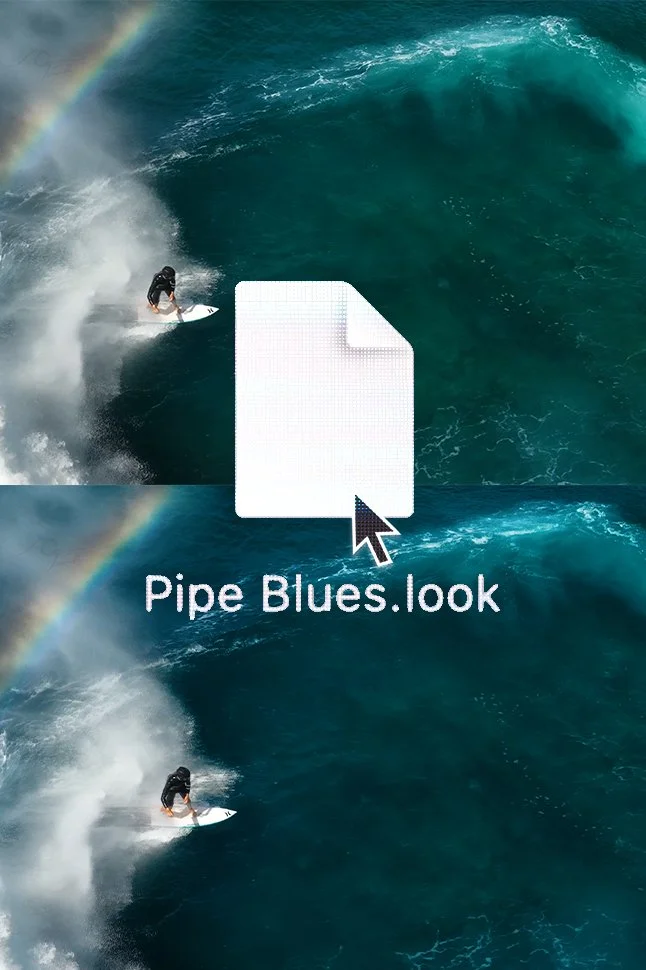 Image 1 of 20
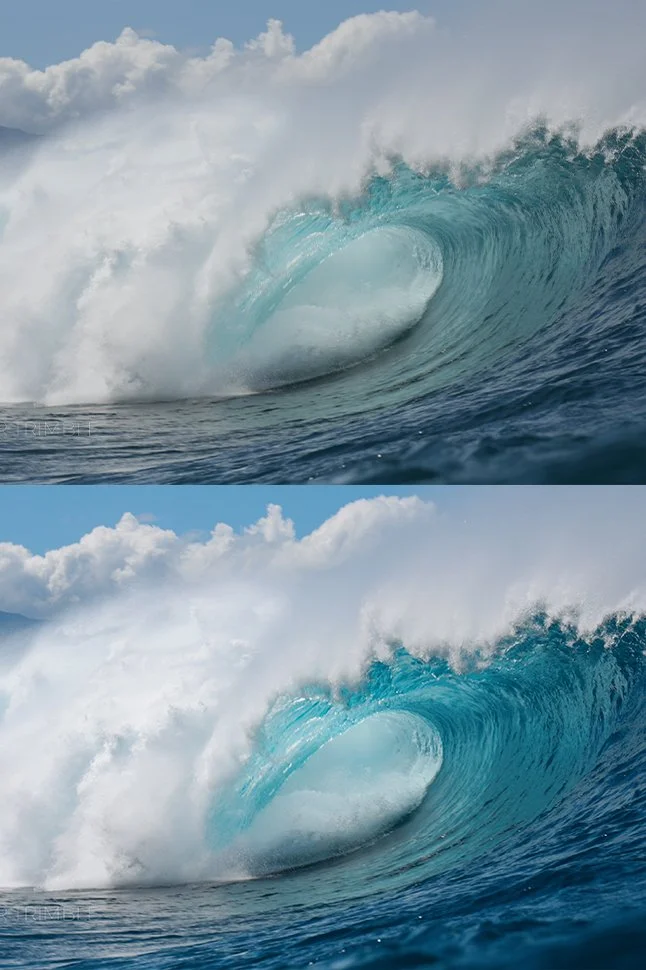 Image 2 of 20
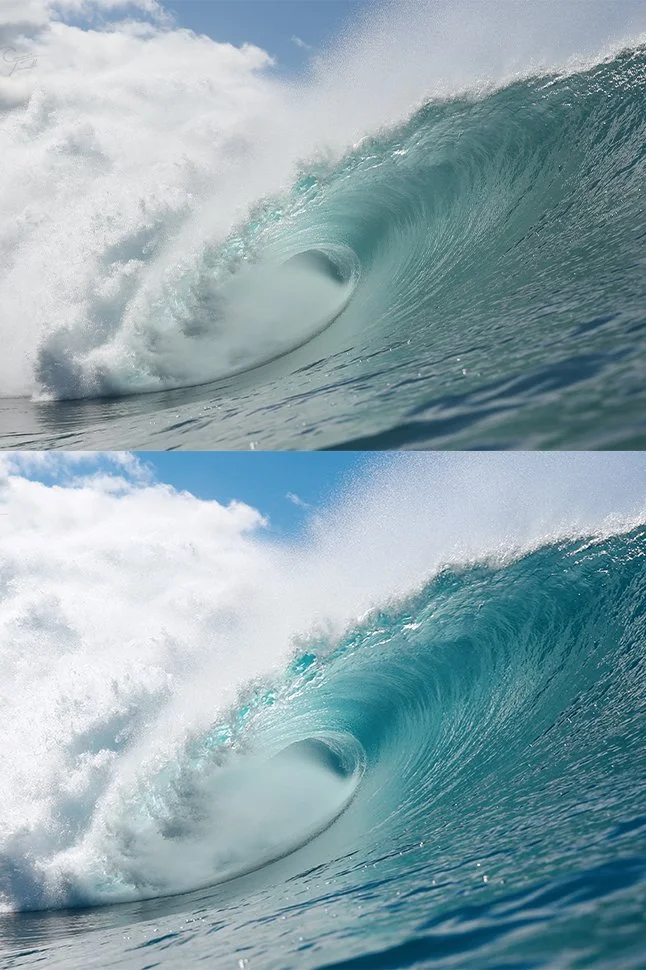 Image 3 of 20
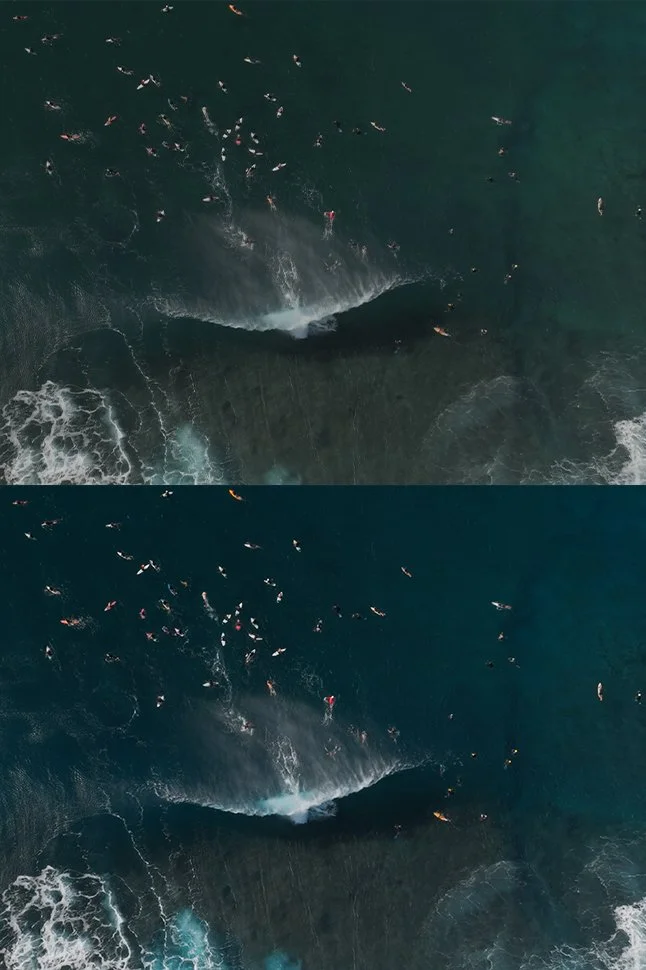 Image 4 of 20
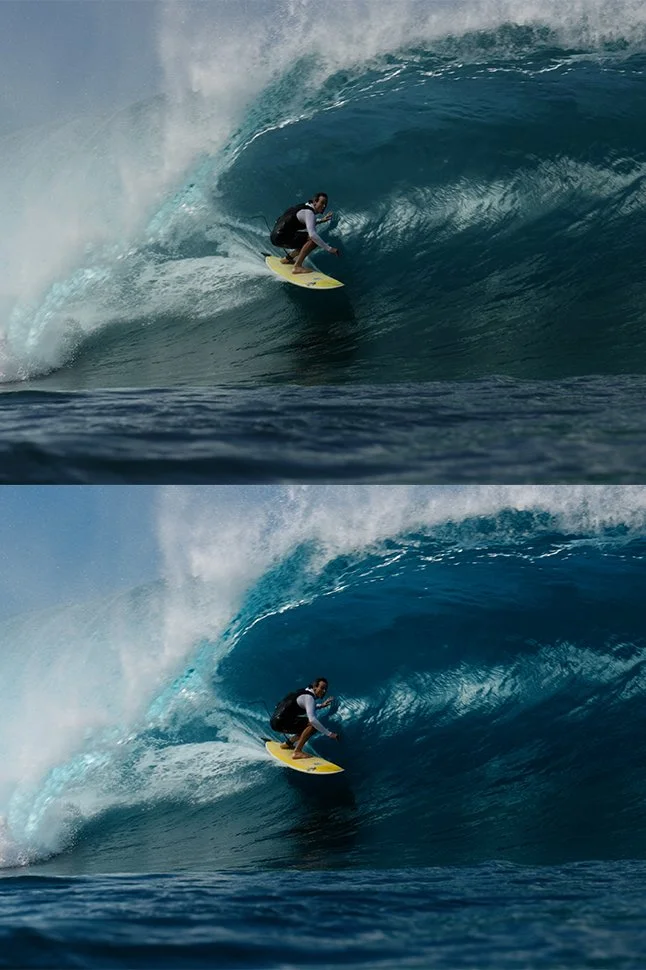 Image 5 of 20
 Image 6 of 20
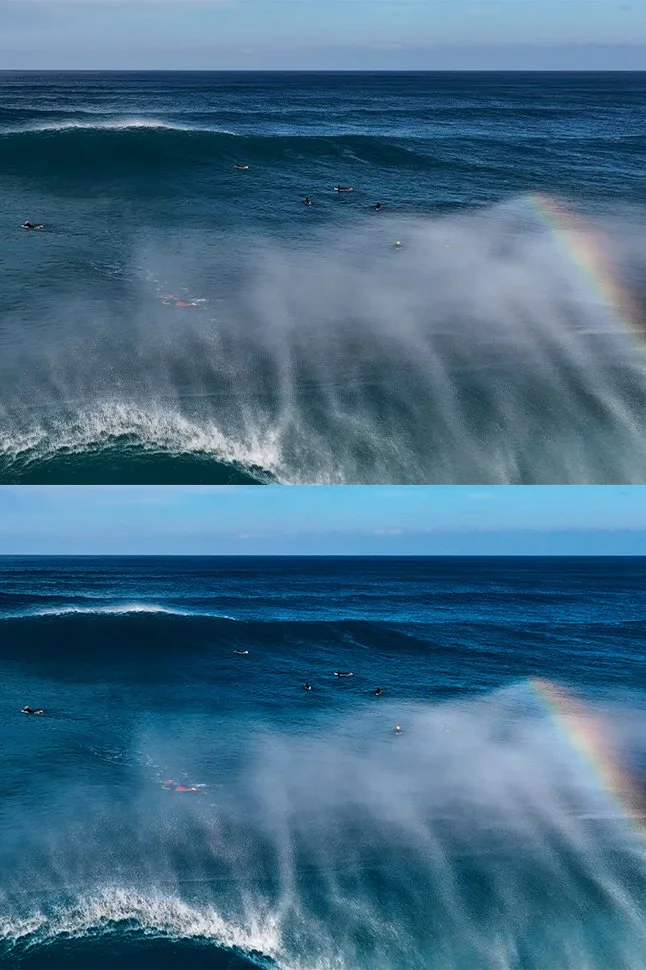 Image 7 of 20
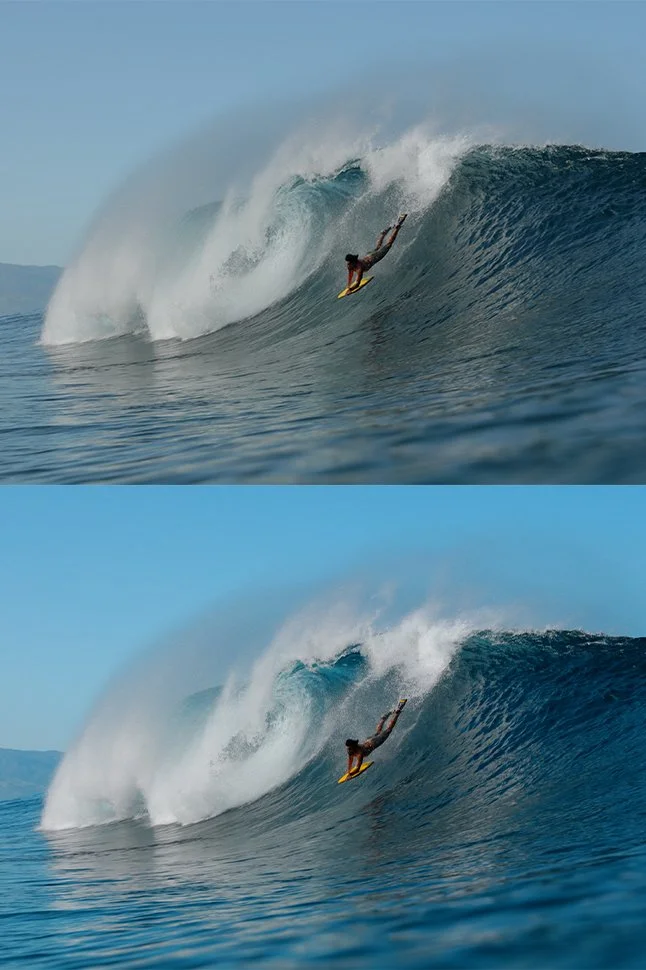 Image 8 of 20
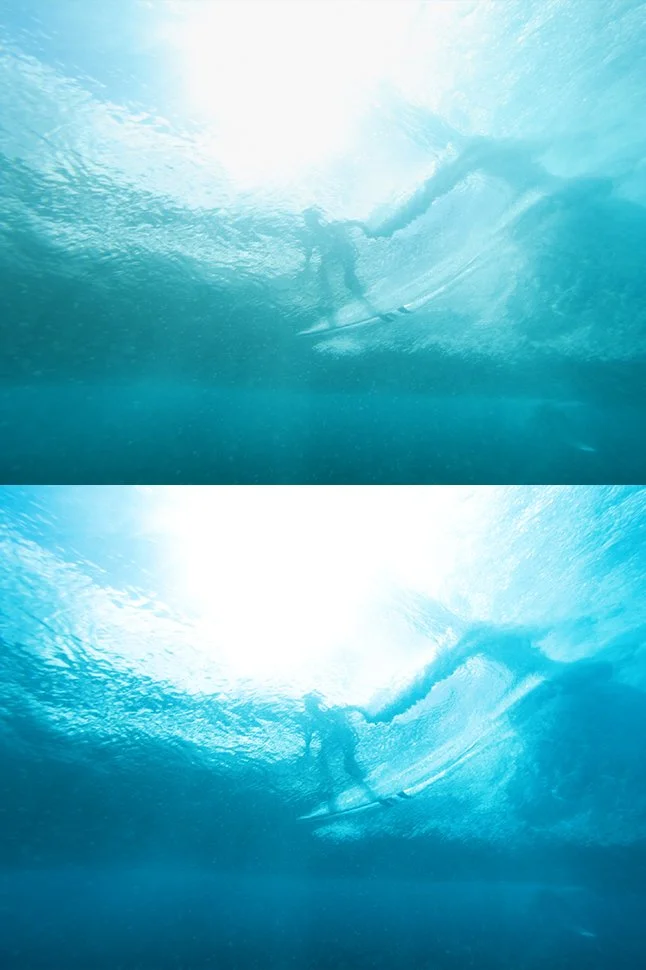 Image 9 of 20
 Image 10 of 20
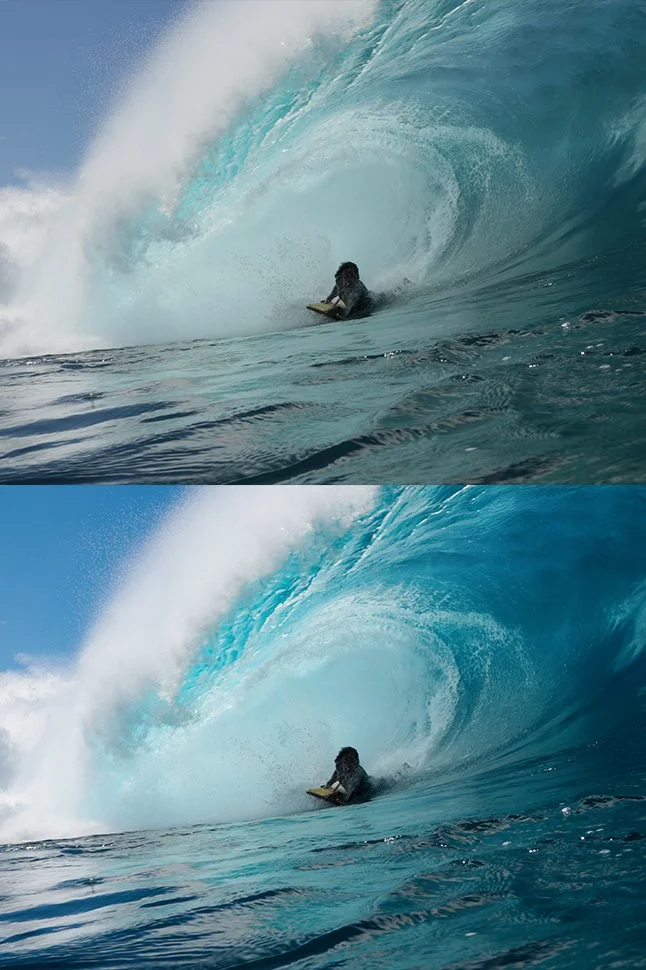 Image 11 of 20
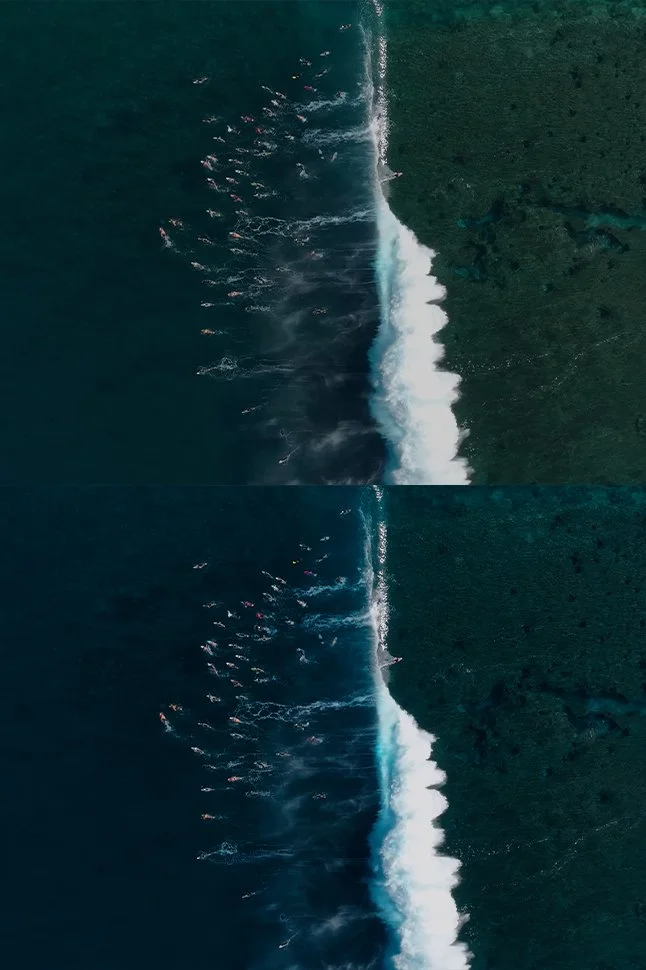 Image 12 of 20
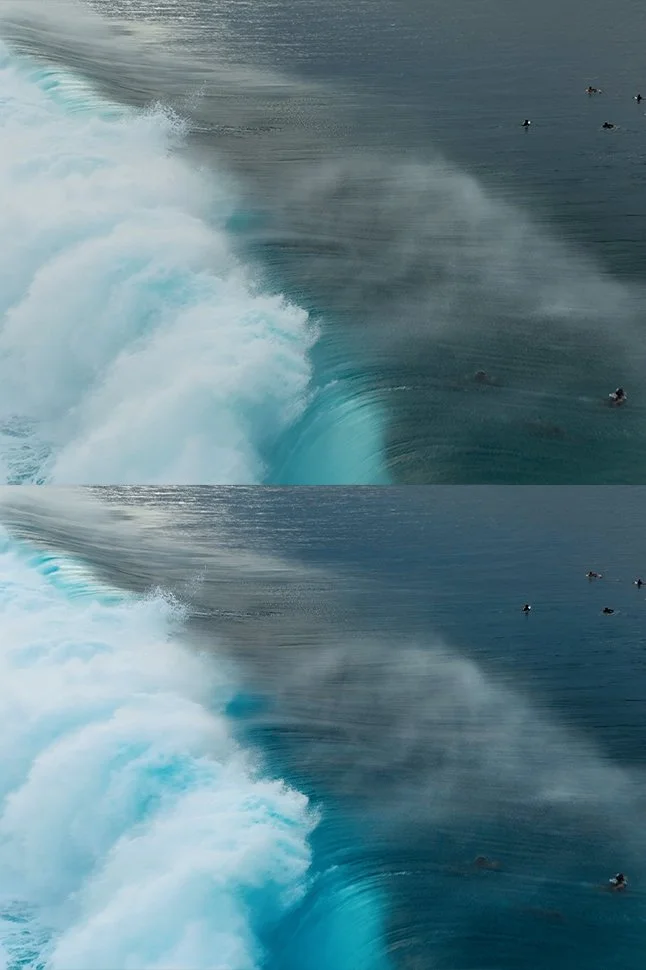 Image 13 of 20
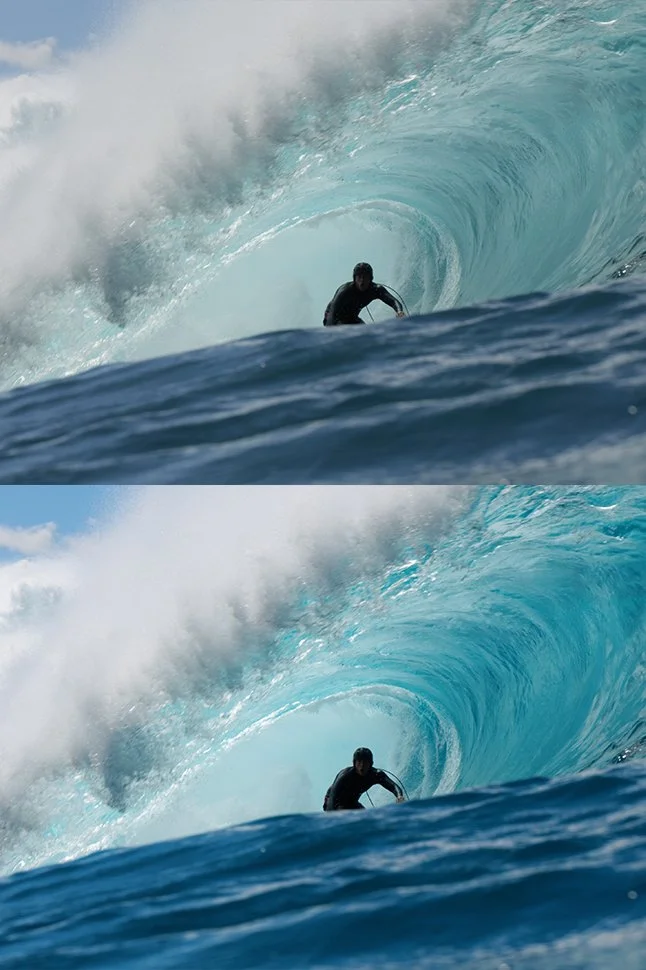 Image 14 of 20
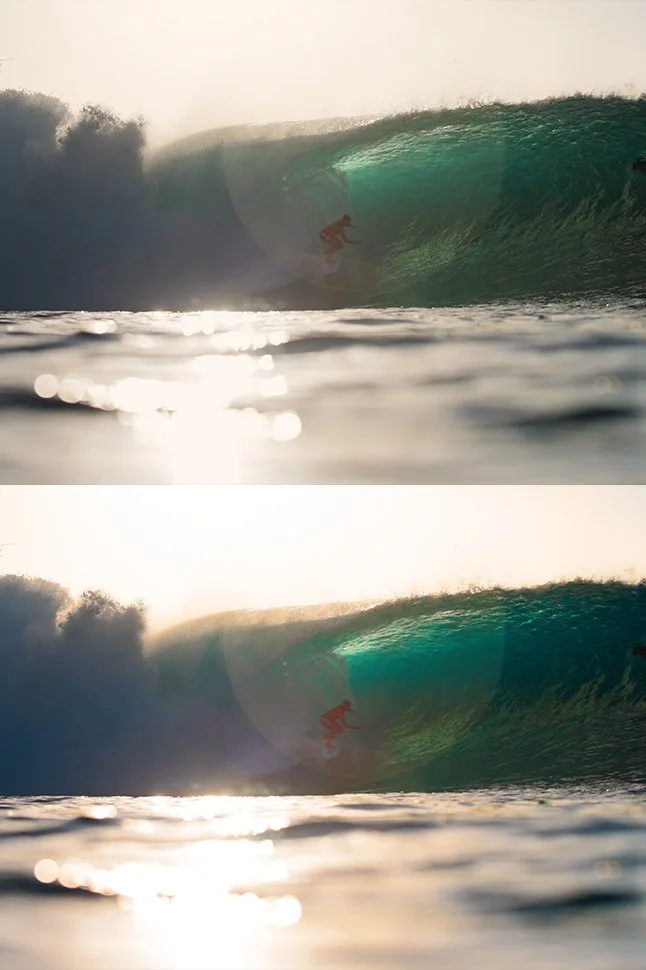 Image 15 of 20
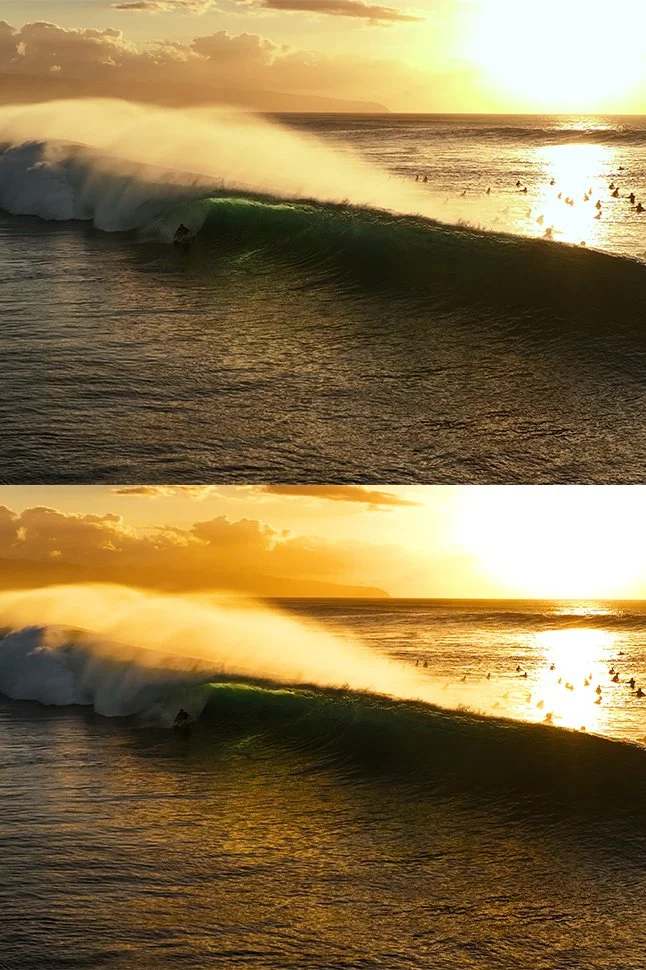 Image 16 of 20
 Image 17 of 20
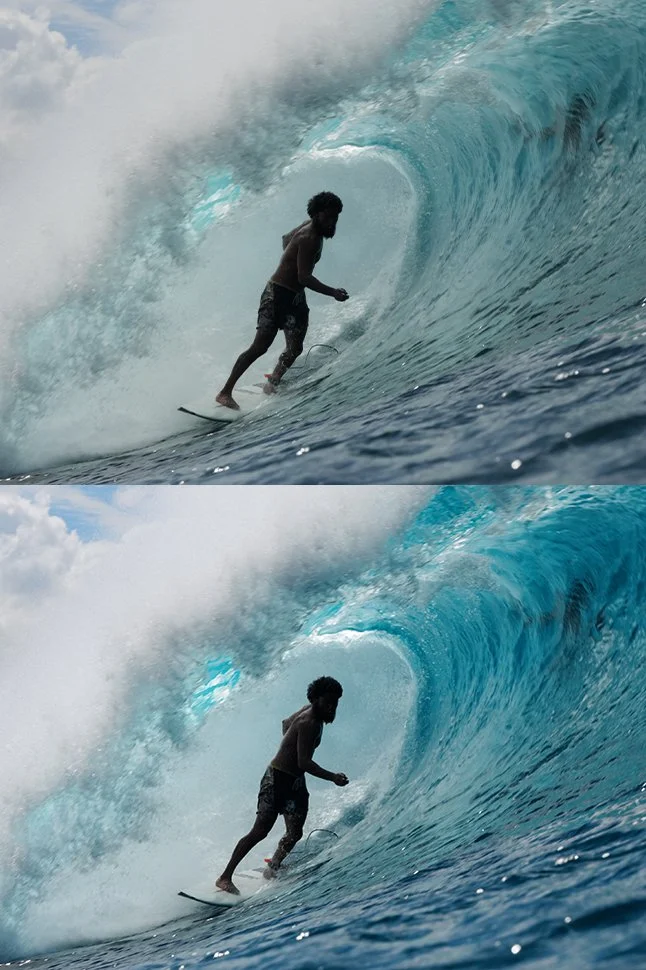 Image 18 of 20
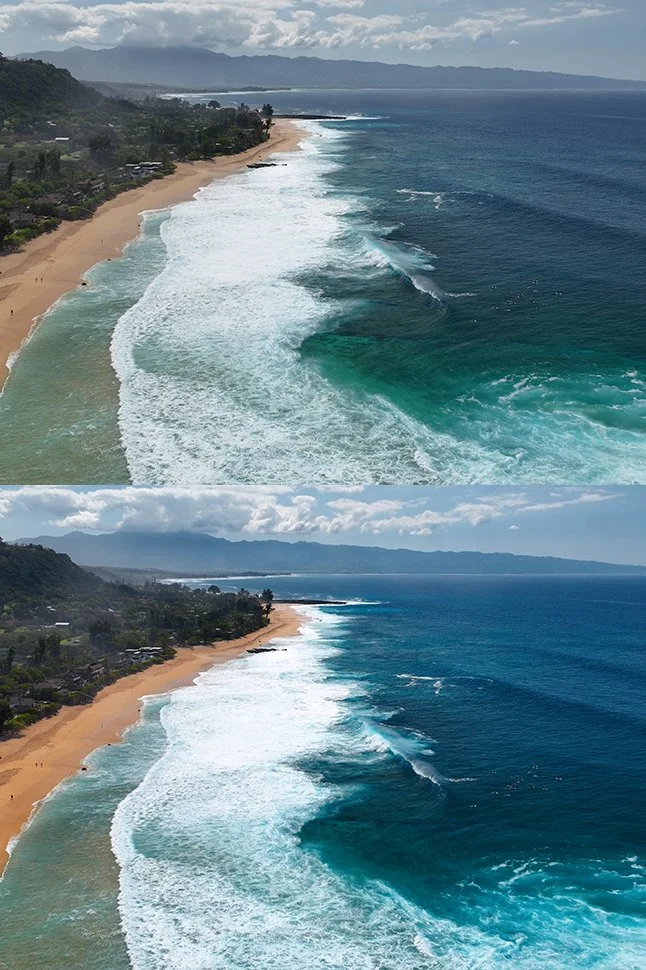 Image 19 of 20
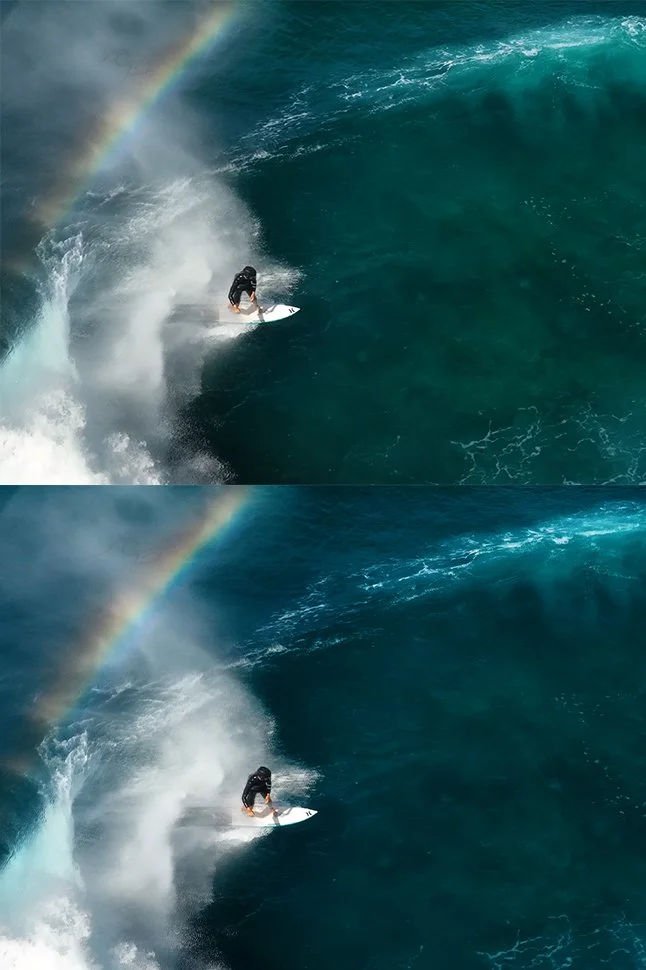 Image 20 of 20